Roman Rhythm Education Game

Step into the Gamification of Piano Learning

Free to Download and Play.

MusesIX is a Roman-themed rhythm game where every beat powers the goddness of music, blending ancient spectacle with modern arcade energy.

Play the Game in 3D or 2D

  • Hundreds of Soundtracks to Practice
  • Multiple Instrument Sounds to Choose From
  • Connect any MIDI Keyboard to iPad, Macs or PC
  • No Midi Keyboard? You can Play with Touch Controls
  • Level Up Your Skills with Friends and Family
  • Load your own Soundtracks
  • Set Cue Loop in any Song to Practice and Jam
  • Create your own unique compositions
  • Tweak sound for live performances
  • Totally Free to Download and Play
From Beginner to Performer

Zero to Hero

Our aim is to encourage anyone who wants to learn the piano to go from zero experience to a live performer in just three months.

It is possible. If you can play half of the songs within our app with good grades, you are performance-ready for live shows.

Start Now — You’re Only 3 Months Away from Becoming a Pianist

2D and 3D Play Modes

MusesIX supports both 2D and 3D experiences, giving players the freedom to choose the style that best matches their performance goals and mood.

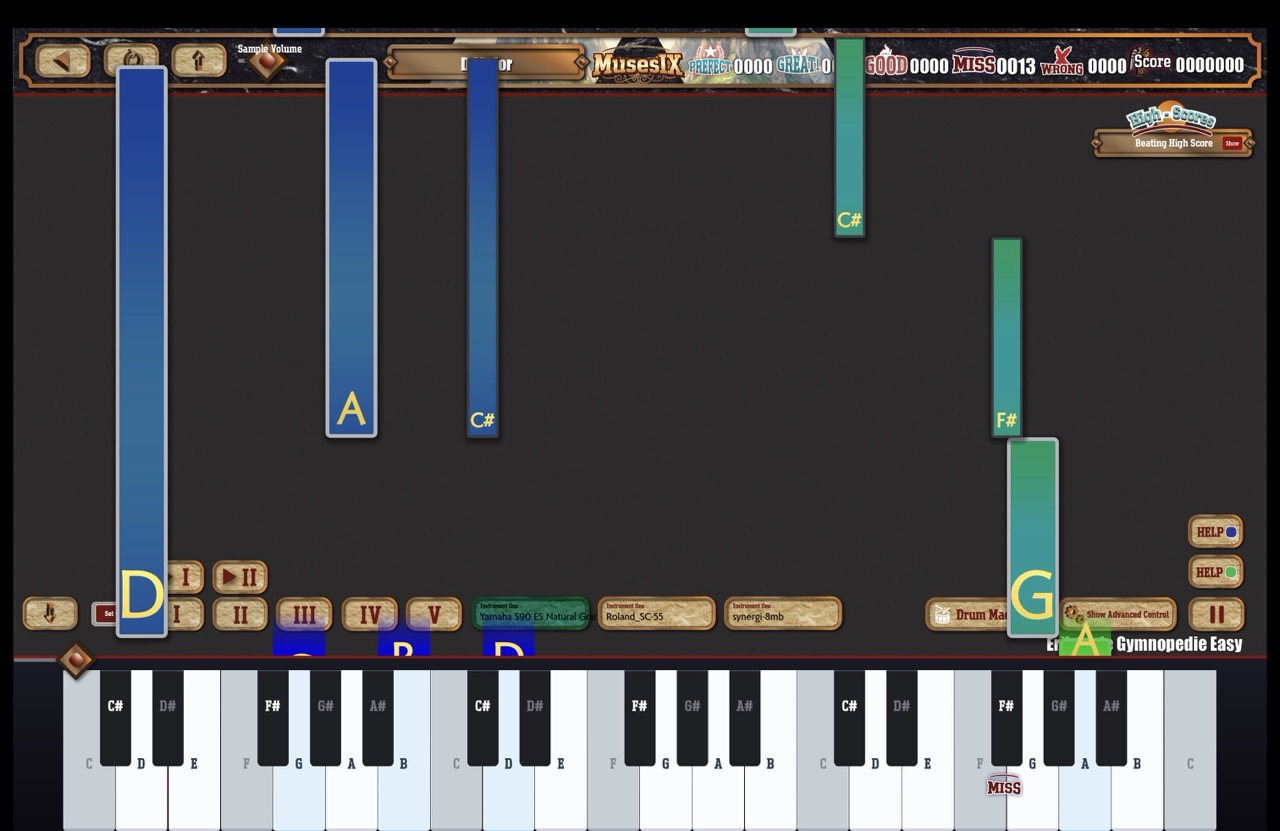
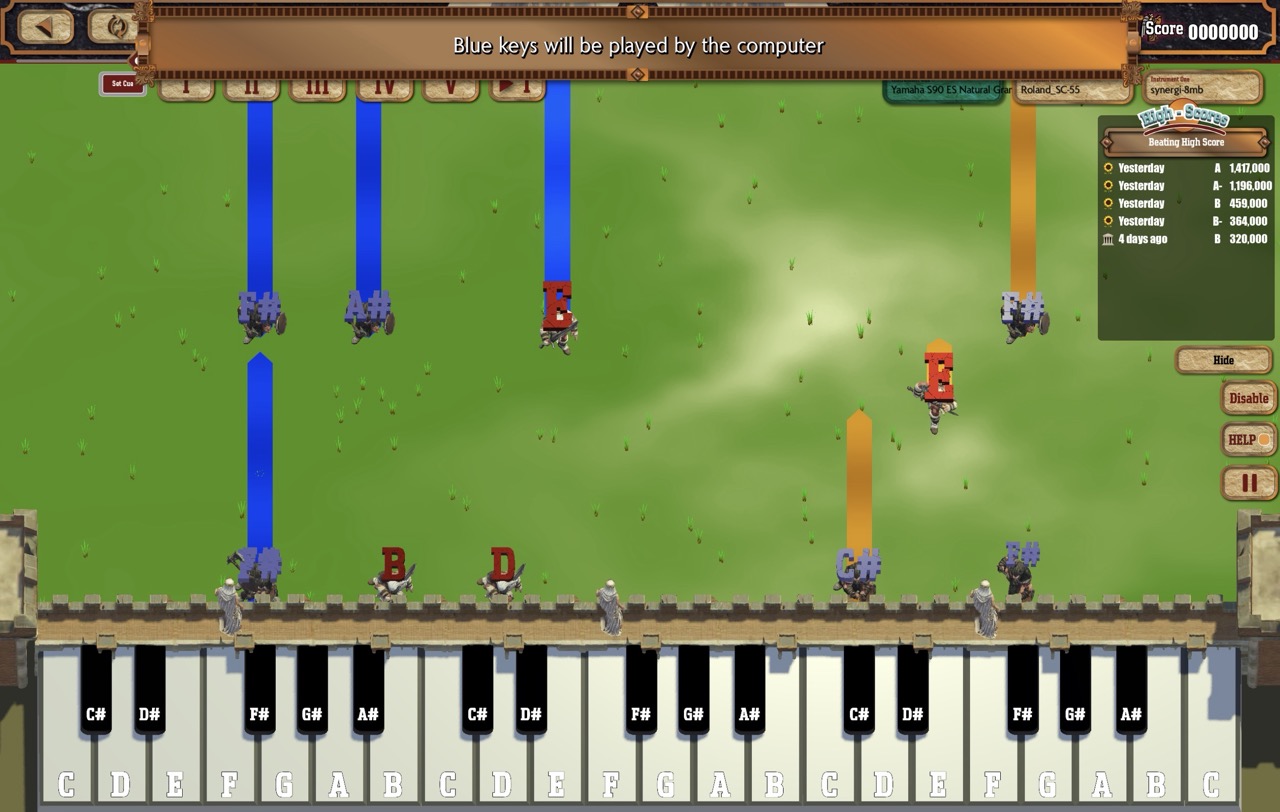
2D mode screenshot

2D Mode

2D mode is designed for live performing and clear note reading. It keeps the interface focused, clean, and highly readable so players can stay locked into rhythm, timing, and expression without visual distraction. This helps beginners learn faster and gives performers a sharper stage feel.

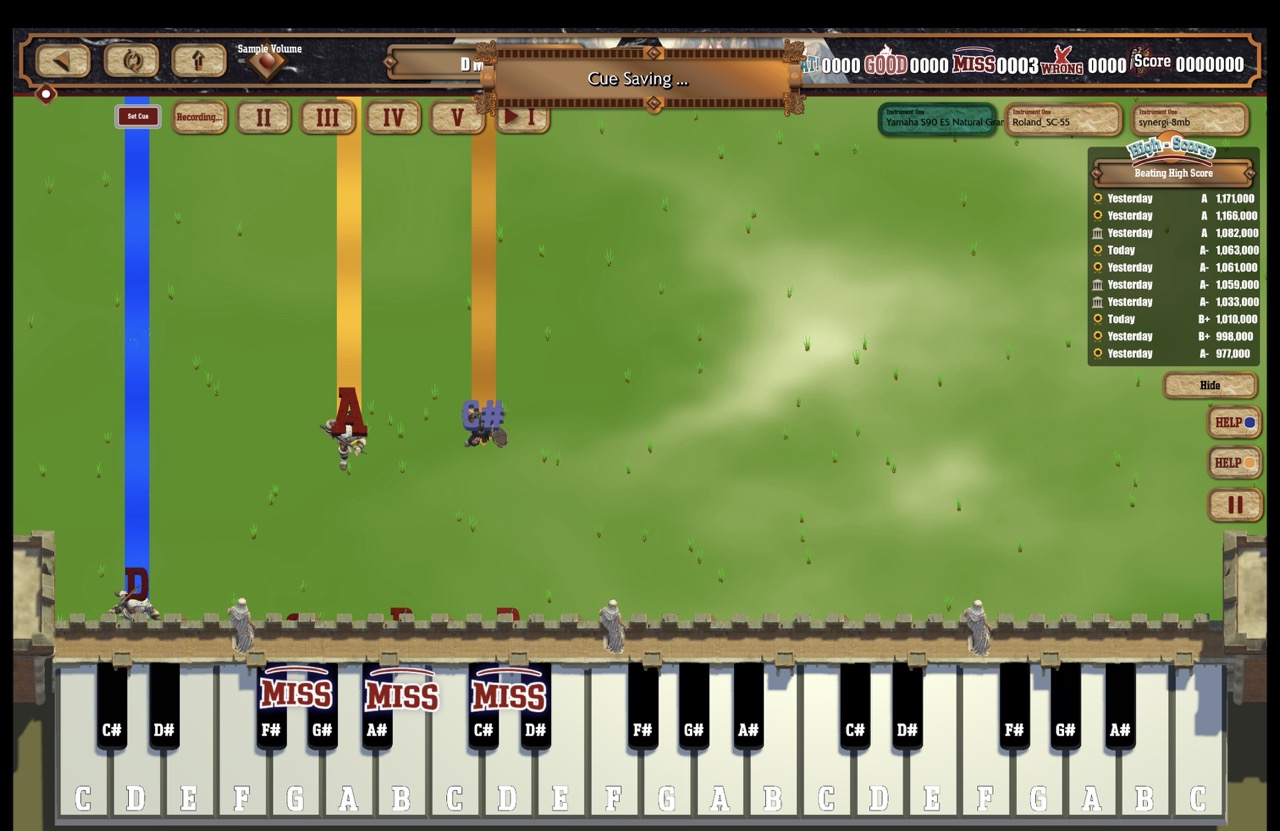
3D mode screenshot

3D Mode

3D mode creates a more exciting and immersive arena experience. It adds depth, movement, and a stronger sense of presence, making every performance feel more cinematic and fun. This mode is perfect for players who want a more engaging, game-like adventure while still learning music.

Scoring to Learn

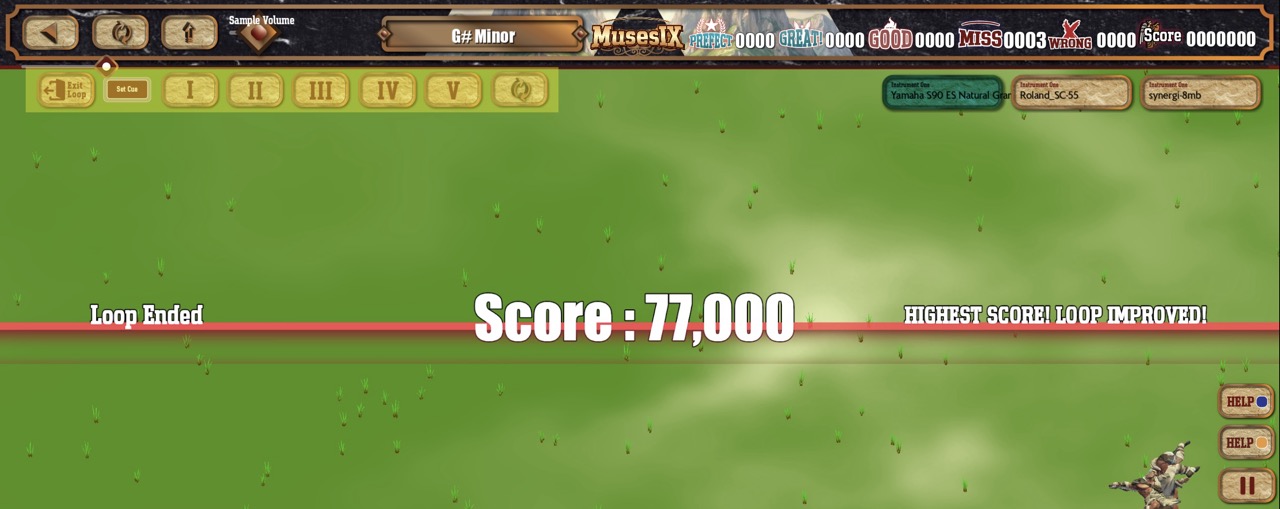
Every performance is scored so you can measure how well you played and review what improved.

Learn from Every Run

Scores are calculated for every performance, and your highest scores are saved so you can compare results over time. After each try, the performance can be replayed to help you check timing, accuracy, and rhythm details. This review flow is available in 2D mode for now.

  • Every performance is scored automatically.
  • High scores are saved for progress tracking.
  • Replay a performance to review and improve your technique.

Setting Cue Loops

Practice with the 80/20 rule (Pareto Principle) in piano learning: a small slice of a difficult score often creates most of your progress. In real practice, that means spending the majority of your time on just a few repeating moments that need the most attention.

Cue loops practice illustration

How to Apply the 80/20 Rule

Instead of replaying an entire piece from the top, identify the toughest 10% of the passage and loop that section repeatedly. Build confidence with short, focused repetitions, then reconnect the loop to the larger phrase. This keeps practice efficient and helps you turn difficult moments into reliable muscle memory.

  • Up to 5 cue loops per song.
  • Choose the smallest difficult phrase that blocks your flow.
  • Set a cue loop around that section and repeat it slowly with precision.
  • Gradually expand the loop once the trouble spot becomes stable.

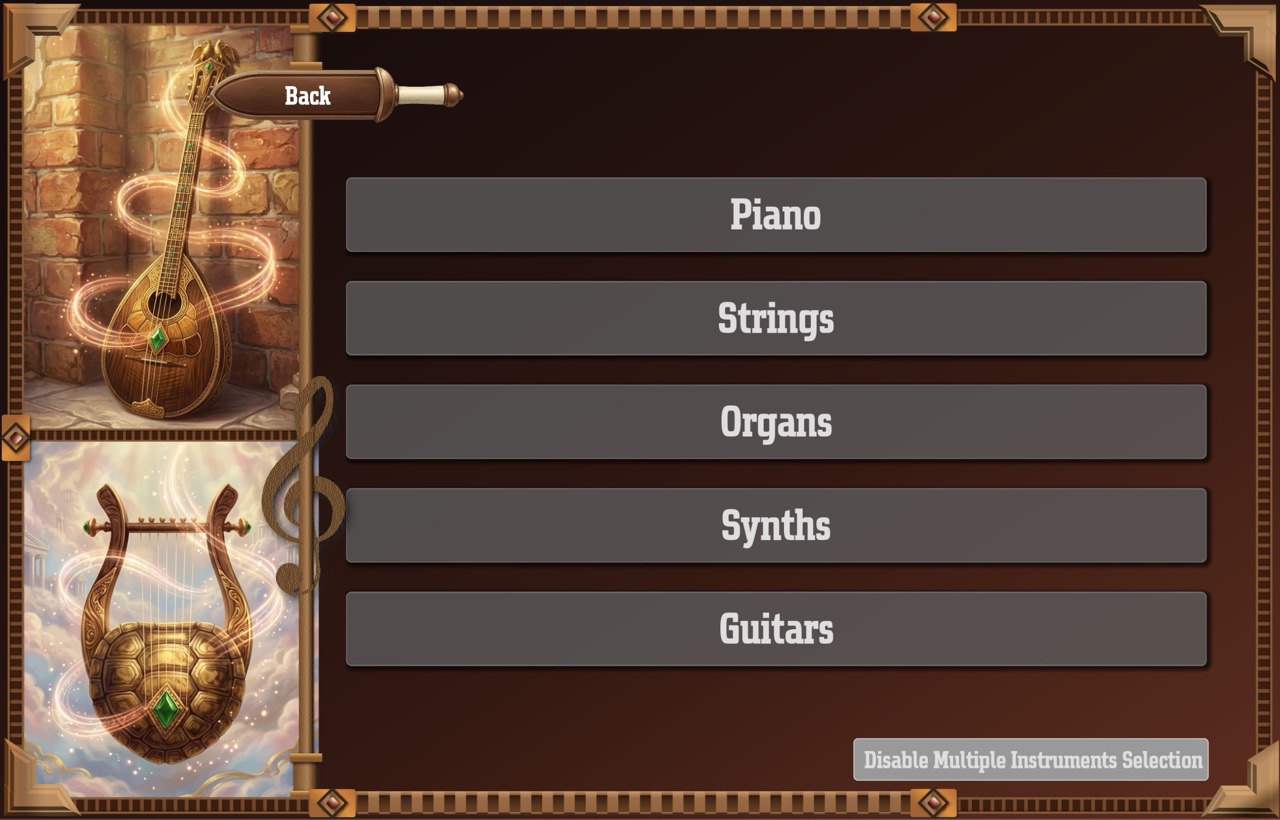
Multiple Instruments

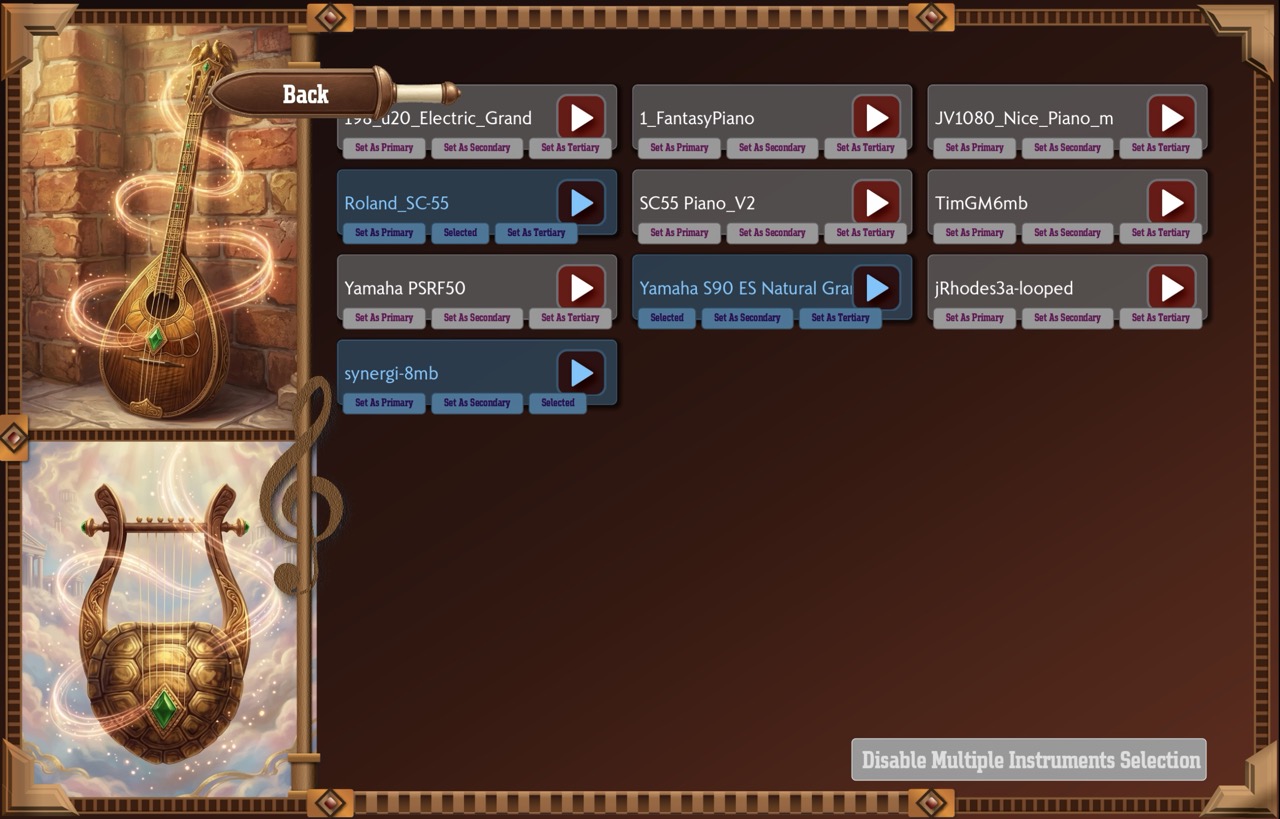
Explore a richer range of timbres and performance options with instrument sound choices that can shift the mood of any practice session.

Instrument selection view one Instrument selection view two

Practice with Variety

Switch between different instruments to hear your rhythm and phrasing in fresh ways. That makes practice more engaging, helps you train ear recognition, and adds excitement to every repetition.

  • Choose from multiple instrument voices.
  • Match your practice tone to the music you want to learn.
  • Create a more engaging and expressive practice session.

Practice Left/Right Hand

The app can help you practice left and right hand separately, making it easier to learn a song with clarity, confidence, and steady progress.

Practice left and right hand illustration

Learn Each Hand with Focus

Break a piece into manageable hand-specific practice blocks so beginners can focus on coordination without feeling overwhelmed. This approach makes it easier to understand timing, finger placement, and phrase flow while building confidence one hand at a time.

  • Practice left hand and right hand independently.
  • Slow down difficult passages and build accuracy gradually.
  • Combine both hands smoothly once each part feels stable.

Multiplayer Battle

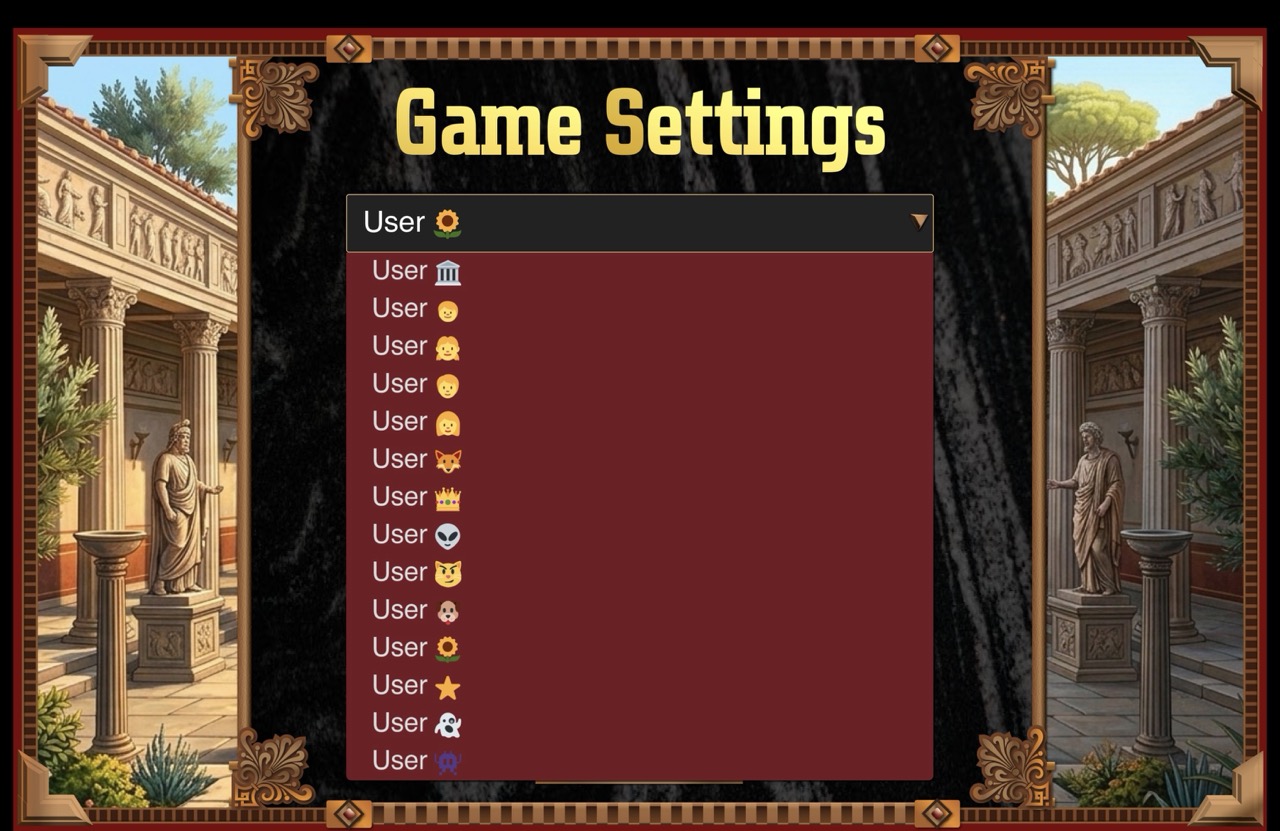
MusesIX brings multiple players together on one device, so families, classmates, and friends can challenge each other, follow each other’s progress, and learn in a shared, motivating environment.

Multiplayer battle illustration

Group Practice That Encourages Growth

Up to twelve players can join the same session on a single iPad or laptop, making it easy for family members or classmates to compare scores, celebrate progress, and keep each other moving forward. The shared setup turns practice into a social rhythm experience that builds confidence, accountability, and teamwork.

Track Your Progress

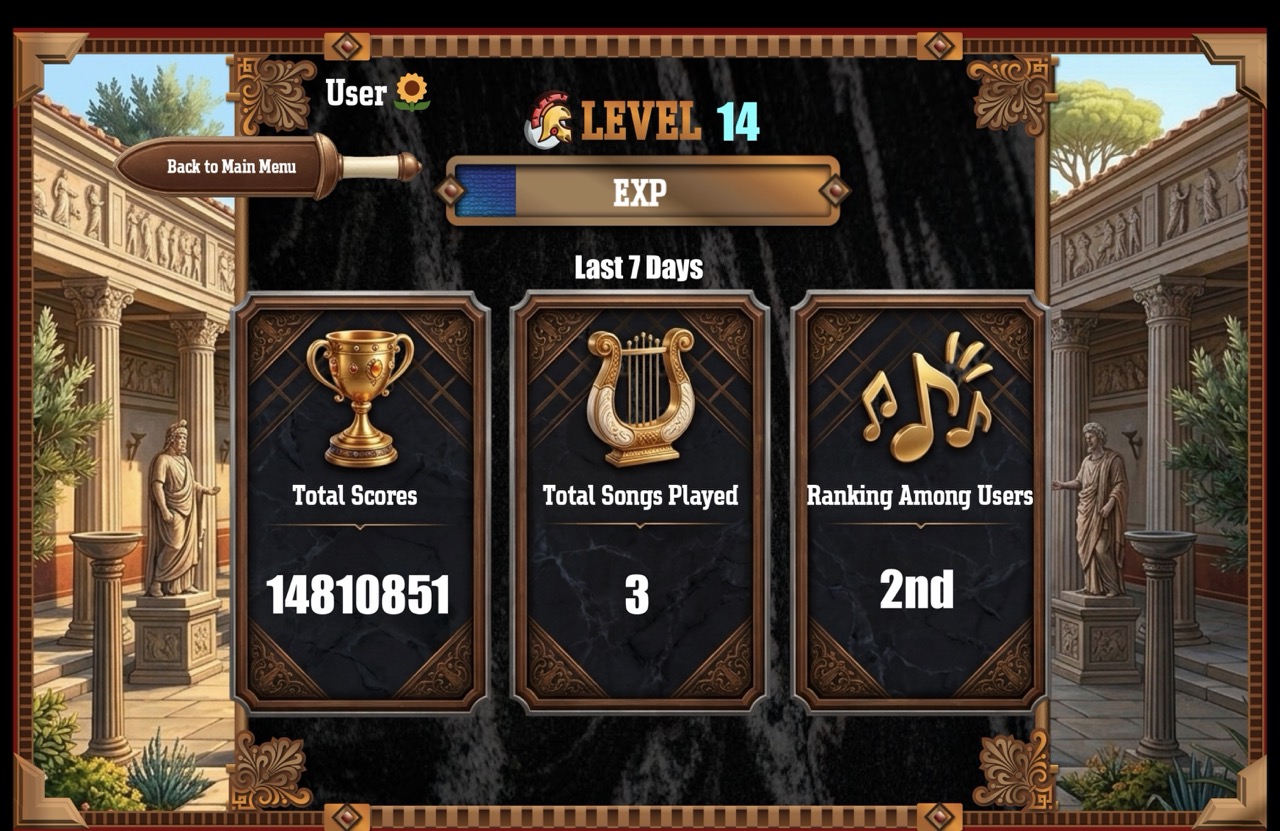
Your experience and level are tracked so you can clearly see how your rhythm skills grow over time.

Progress tracking experience and level overview

See Your Growth

MusesIX keeps your progress visible with experience points and level progress so you can understand how your practice is improving session by session. This makes it easier to stay motivated, celebrate milestones, and keep moving forward with confidence.

  • Track your experience and level progression.
  • See steady growth as you complete songs and improve your timing.
  • Stay motivated with a clear view of your learning journey.

Play with Any MIDI Keyboard

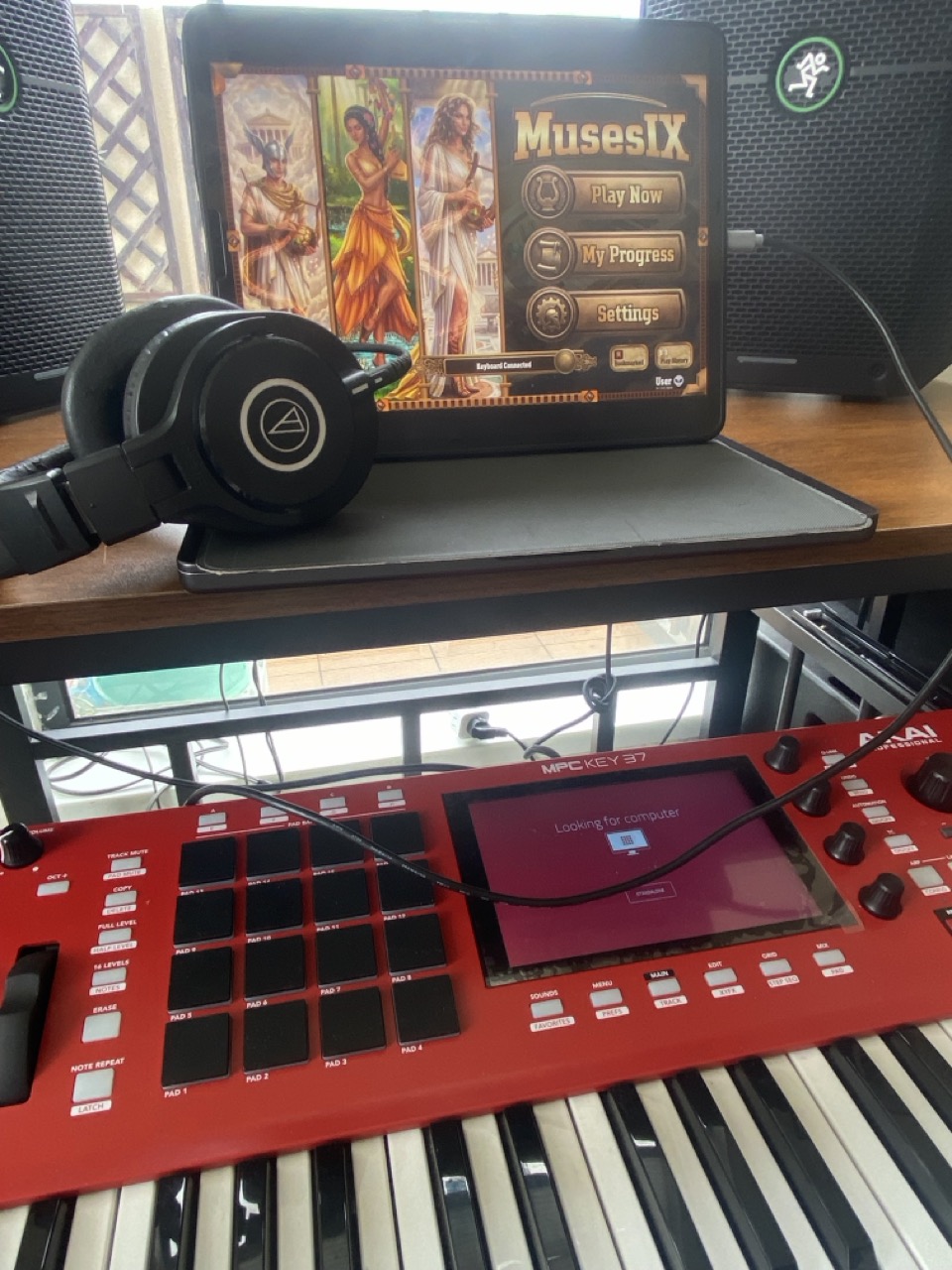
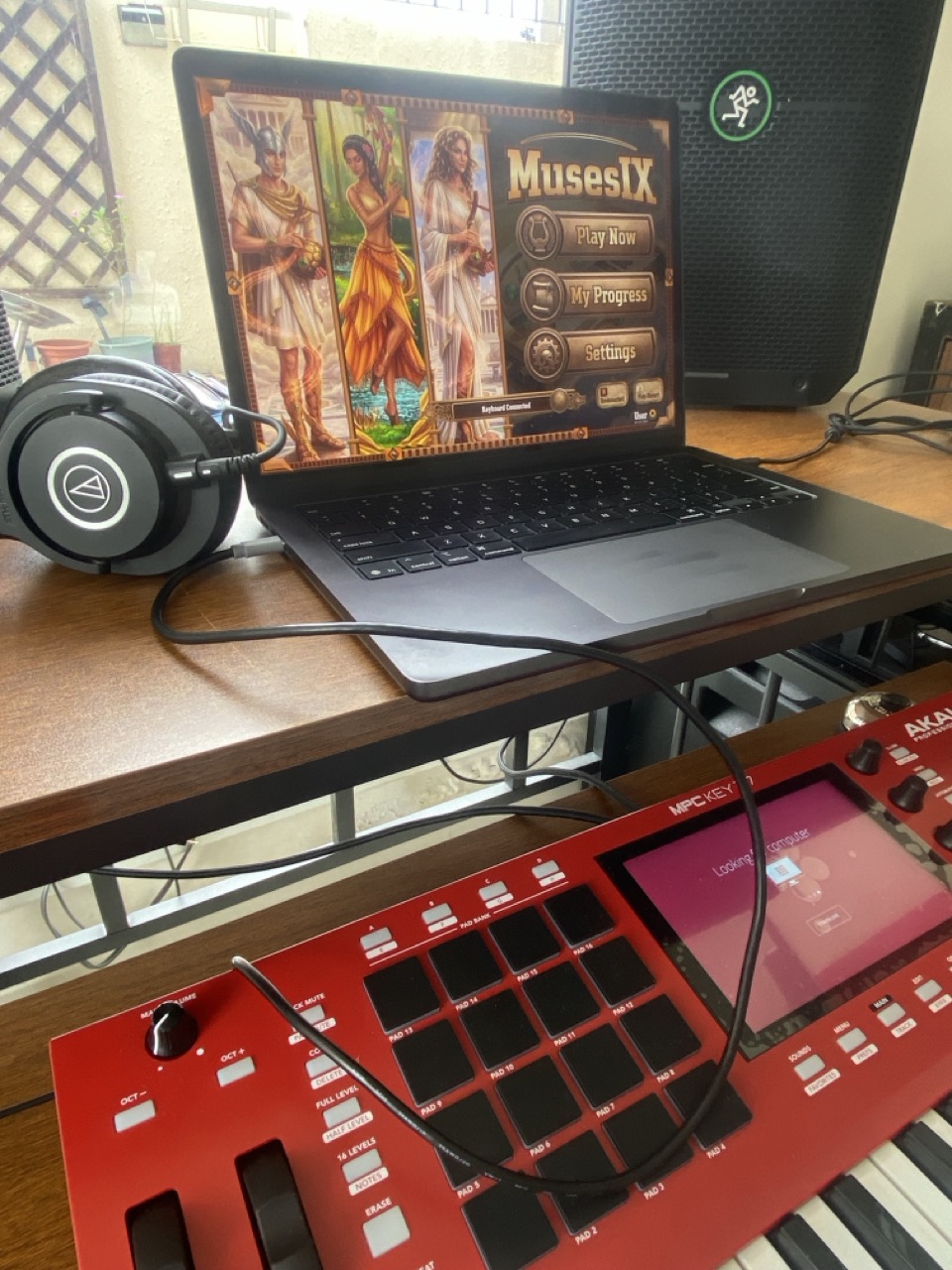
Connect a MIDI keyboard to your MAC laptop or iPad and play with the feel of a live musical performance. If no MIDI controller is available, you can still enjoy the game with touch controls.

Connect MIDI keyboard to iPad Connect MIDI keyboard to laptop

Supported Setup

MusesIX works on both MAC OS and iPad, so you can plug in a compatible MIDI keyboard and play with a realistic studio feel. When a keyboard is not available, the touch interface gives you a flexible way to keep practicing and learning right away.

Advance Sound Controls

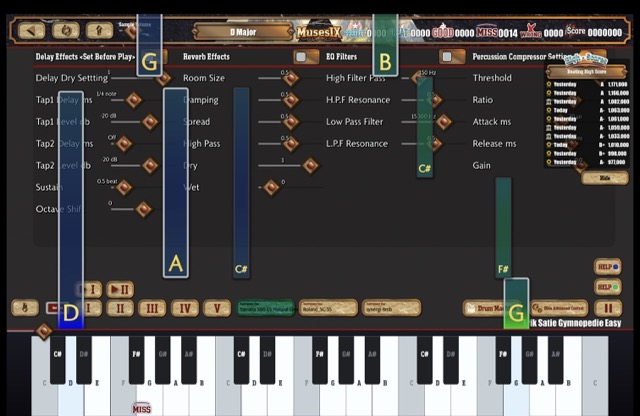
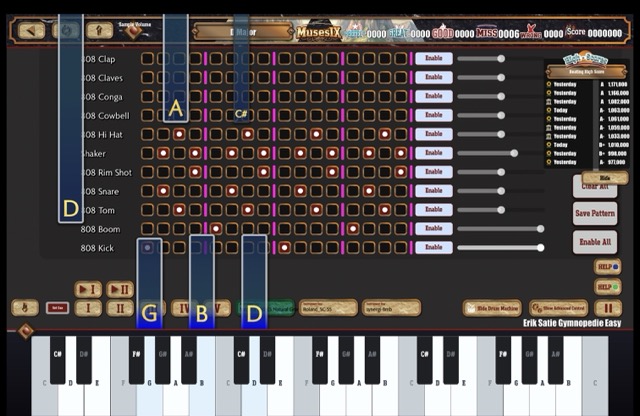
Add a richer performance layer to your sessions with built-in rhythm tools and studio-style effects that help you shape your sound while you play.

Advanced sound effects control preview Drum machine performance preview

Shape Your Performance

Advanced sound controls give performers the ability to add simple drums and percussion while playing, then layer on creative enhancements such as reverb, delay, and EQ to give every run a more polished and expressive feel, your creativity is the limit.

  • Build simple drum and percussion layers while you perform.
  • Apply reverb, delay, and EQ adjustments to shape your final tone.
  • Use the feature to create more dynamic and professional-sounding practice sessions.

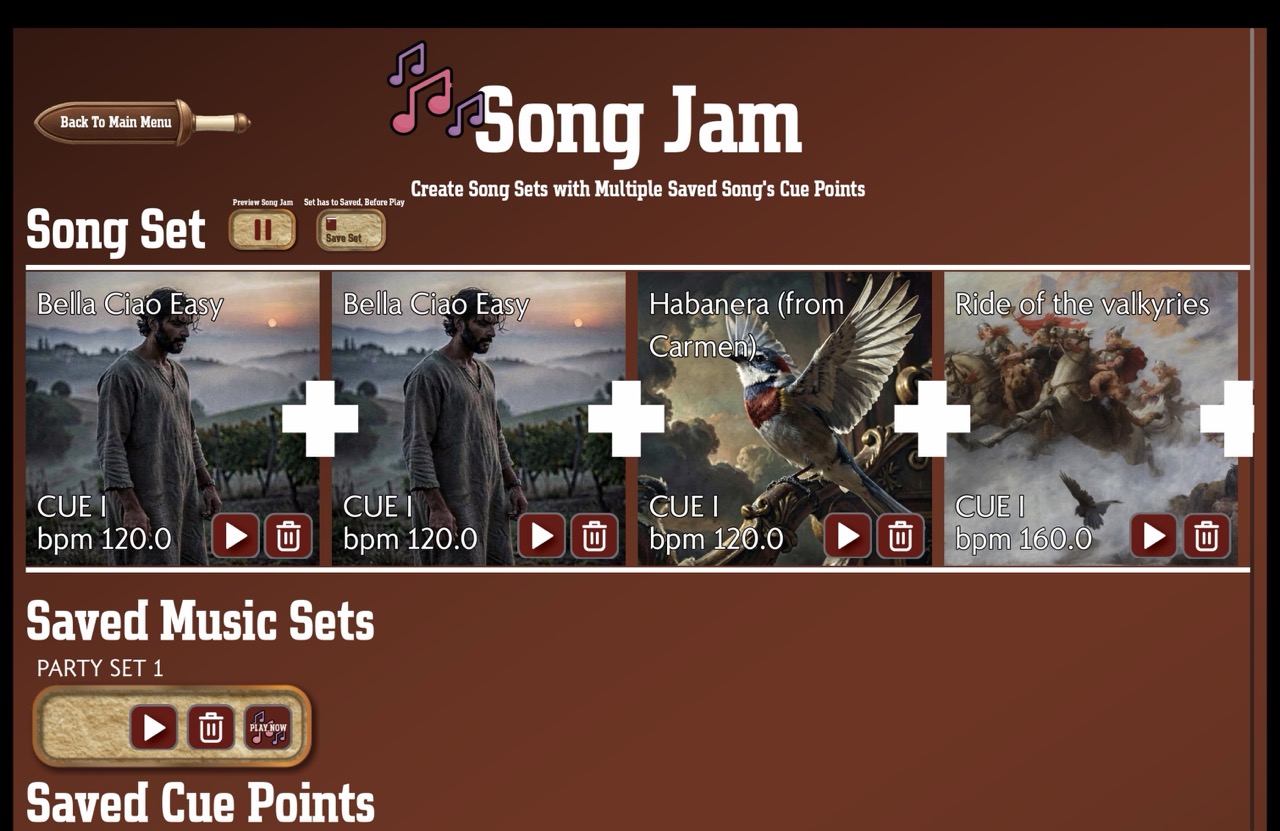
Advance Song Jams

Build custom music sets by chaining together multiple song sections and creating your own flow for endless practice and unlimited possibilities!

Advance Song Jams illustration Custom song set building preview

Create Your Own Setlist

With Advance Song Jams, players can build full music sets using multiple song sections, remixing their practice into fresh combinations that match their skill level, mood, and creative goals. This opens up unlimited possibilities for focused drills, performance runs, and custom playlists.

  • Create music sets using multiple song sections.
  • Mix and match performance flows to fit your practice style.
  • Build custom jam sessions for creativity, challenge, and repetition.
  • Turn your practice into endless combinations with no fixed limits.

YouTube Channel

Watch the latest shows, reveals, and soundtrack moments from the MusesIX world.

Download the Game

Free to Download and Play — jump into the arena instantly on your device.

macOS Desktop

Install the MusesIX desktop client with a native macOS DMG package.

Download DMG

Windows Desktop

Play on PC with the Windows EXE installer. Unzip the downloaded zip file, unzip it, then run the exe installer.

Download for Windows

FAQ

Answers to common questions about MusesIX setup, playback, MIDI importing, and custom song creation.

Is there any in-app purchase?

No. MusesIX will be free to play forever, with no strings attached.

Can I play without a keyboard?

Yes, of course. On an iPad, you can play songs using the touch controls. However, the experience will be limited, so it is best to choose easier songs. This is a great option for kids learning the basics, but we highly recommend purchasing a simple MIDI keyboard to dramatically improve the playing experience.

On a PC or Mac, you can also play with the mouse cursor, but this is not recommended for the best experience or accurate rhythm control.

How do I connect a MIDI Keyboard to an iPad?

Just plug your MIDI keyboard into the iPad's Lightning port or USB-C port (depending on your iPad model) using the appropriate cable or adapter. The app should automatically detect the connected MIDI device.

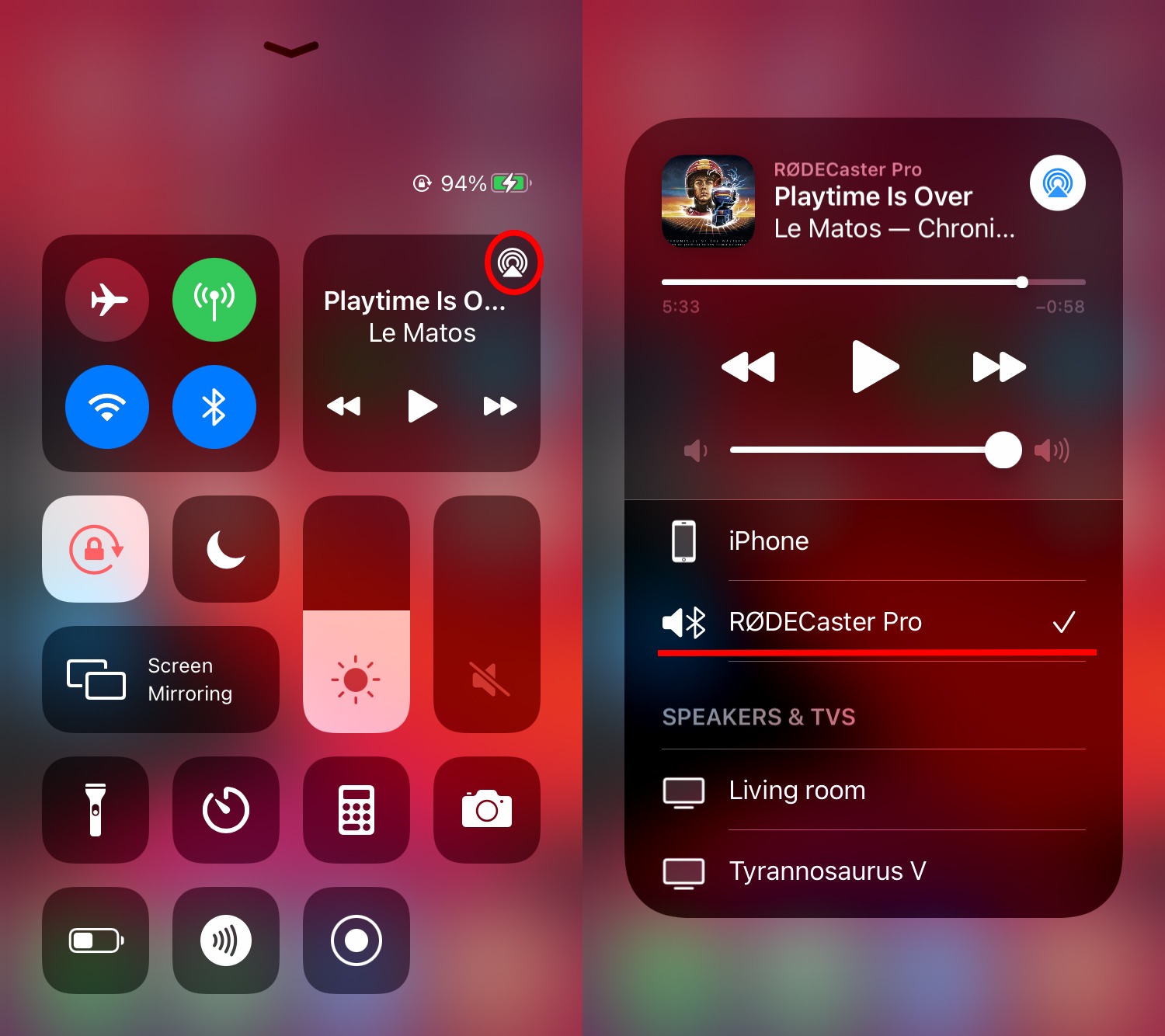
I get no sounds on my iPad, after connecting my MIDI keyboard.

Audio output selection in iPad Control Center

Oftentimes, when the keyboard is connected, the iPad will think the piano is a speaker. Swipe down from the top-right corner of your screen to open the Control Center. Tap the AirPlay icon (a triangle with overlapping rings and sound waves) in the top-right corner of the media playback tile, then select your preferred speaker, headphones, or device from the list.

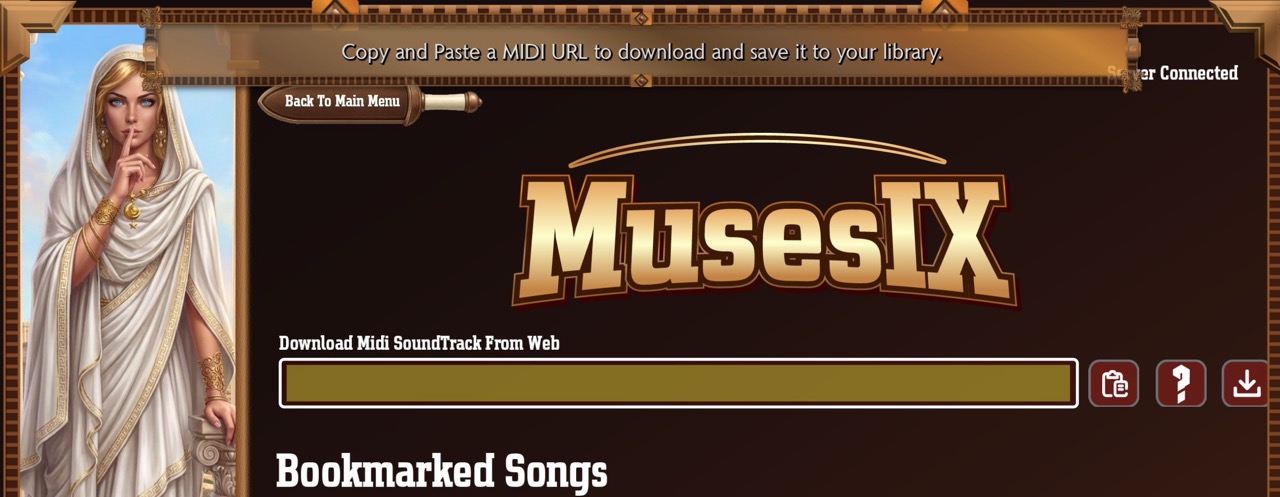
How do I load my own MIDI files?

MIDI download input field

Click the Play Now button. An input box will appear where you can enter the URL of a MIDI file. The app will download it, and the song will appear in the Downloaded Songs category. The download link must point directly to a .mid MIDI file, or the download will fail.

Can the app play any MIDI file?

Yes, but the MIDI files should be clean piano solos. If a file contains multiple instruments, the notes may clump together and become hard to read.

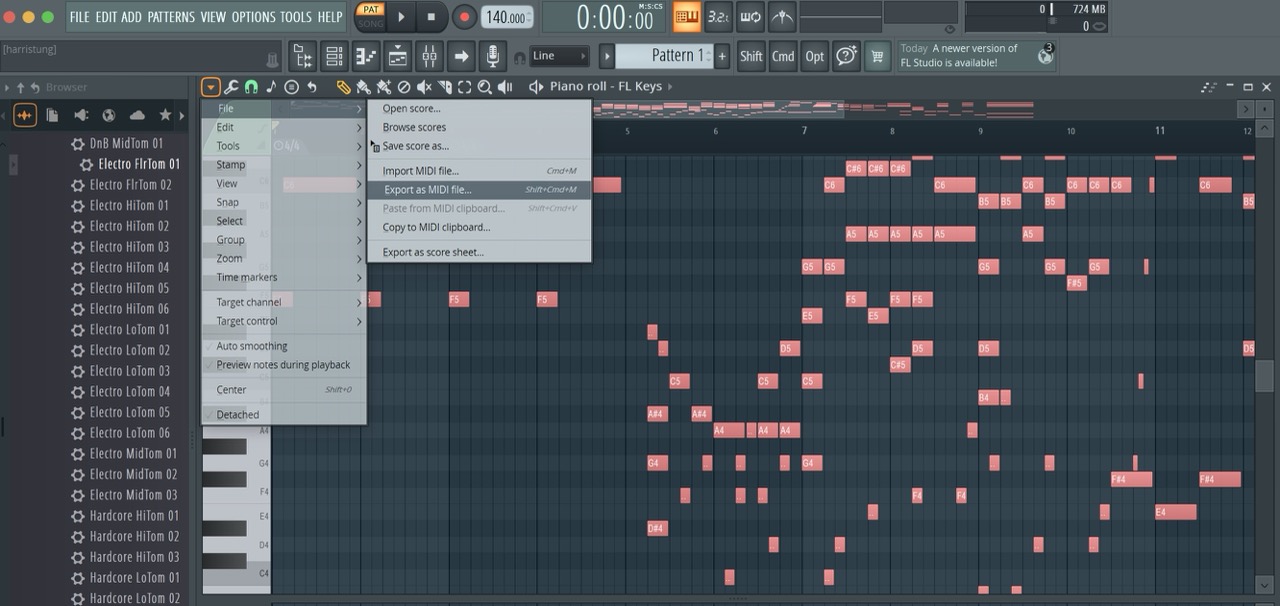
If I create my own song in a DAW, how do I load it into the program?

Exporting MIDI from DAW software

Export your piano roll to a MIDI file, upload it to a cloud drive such as Google Drive, create a download link, and paste that link into the MIDI input field in the app.

What if my iPad or computer has no internet connection, or I am performing in a public place without Wi-Fi and the categories are not loading?

Yes, the app requires an internet connection to fetch the latest songs from our server. To play songs offline, you must bookmark them first, and then they will be available without an internet connection.

Can I load my own custom instrument sounds?

That feature is coming soon. At the moment, custom instrument sounds cannot be loaded.

How do I create a song jam?

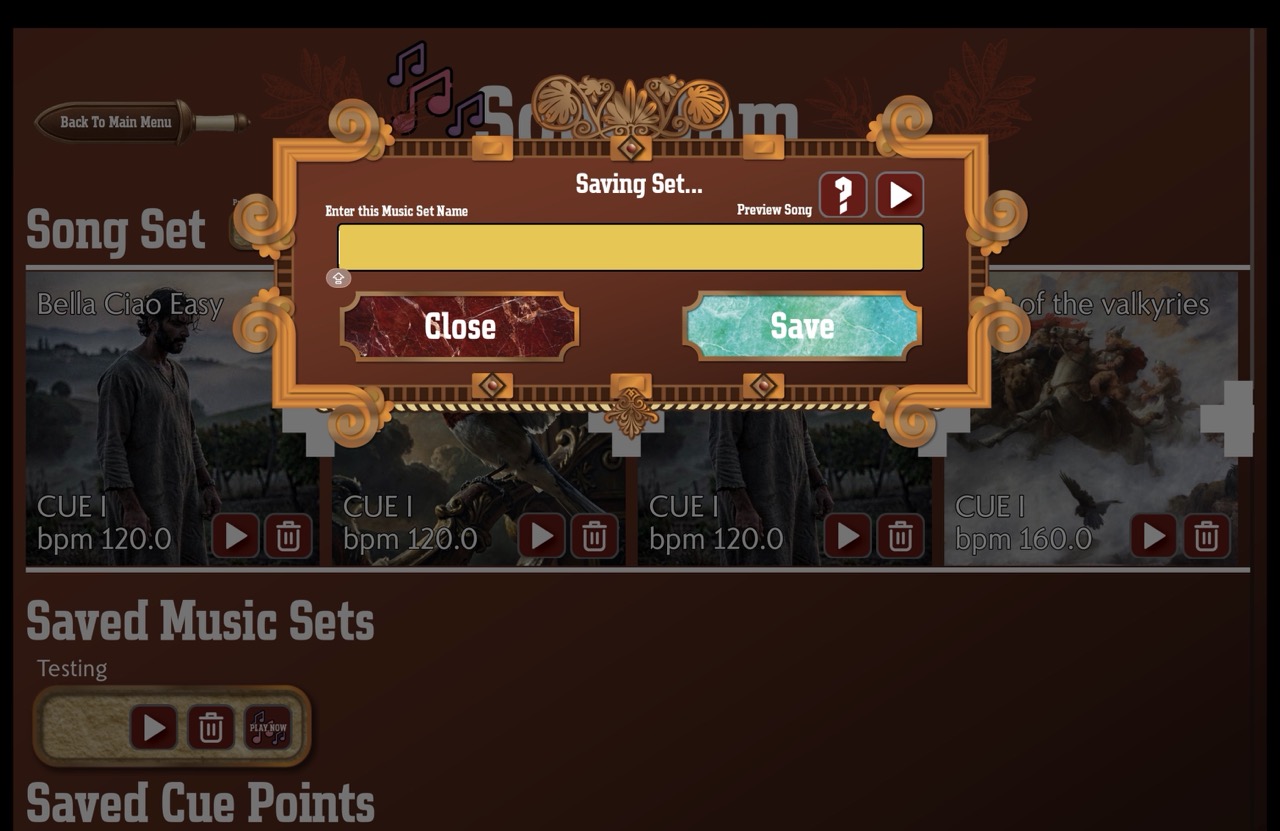
First, create cue sections by using the top five Roman numeral buttons to record a song section within a song. The notes are recorded as they are played. Then click the Song Jam button at the bottom of the main menu. Your saved cue sections will appear under “Saved Cue Sections.” Press the plus button on the song, and it will move to the top, similar to the save musical set button. Give it a unique musical set name, and the combined music set is ready to play by pressing the Play Now button on the set.

What is the scoring mechanism?

MusesIX uses a clear timing-based scoring system to reward accuracy and penalize mistakes. The game awards points according to how well the player hits each note:

Perfect: +4000 points

Great: +2000 points

Good: +1000 points

Miss: -1000 points

Penalty / Wrong Note Played: -3000 points

In short, the better the timing and note accuracy, the higher the reward. Misses and wrong hits reduce your score quickly, so precision is essential for high performance.

I am using Bluetooth speakers or headphones and the song is lagging.

Yes — Bluetooth audio introduces latency, which can make the sound feel delayed compared with the on-screen timing. For the most accurate performance, connect your PC, Mac, or iPad directly to a headphone or speaker using a 3.5 mm audio cable. This reduces delay and gives you a more responsive, in-time playing experience.

How do I record a video?

Our app does not have a built-in video recording feature. However, you can use your device’s screen recording function to capture your gameplay. On iOS, swipe down from the top-right corner to access Control Center and tap the screen recording button. On macOS, press Shift + Command + 5 to open the screenshot toolbar and select the screen recording option. If you want to capture your performance audio as well, make sure to enable audio recording.

Follow MusesIX

Stay connected with the latest game updates, events, and community highlights.

Privacy Policy

MusesIX does not store, collect, or access any user's personal information.

Privacy at MusesIX

Last updated: August 15, 2026

MusesIX is designed to respect your privacy. The app does not collect, store, access, sell, or share personal information. You do not need to create an account, provide your name or email address, or submit any personal details to play the game.

Information We Do Not Collect

MusesIX does not collect your name, email address, contact information, precise location, contacts, photos, browsing history, advertising identifiers, or payment information. We do not use personal information for advertising, profiling, or behavioral tracking.

Game and Device Data

Game progress, scores, settings, bookmarks, and downloaded songs may be stored locally on your device so the app can provide its features. This information is not sent to us or connected to your identity. MIDI files or other song content that you choose to load are used only to provide the requested music experience. Please do not include personal information in files or links you choose to load into the app.

Internet Connections and Third-Party Services

Some features may require an internet connection to retrieve songs, updates, or content hosted by third parties. MusesIX does not receive or store personal information through these requests. When you open an external link, such as a YouTube video or download link, that service may process information under its own privacy policy. We encourage you to review the privacy policy of any third-party service you use.

Children's Privacy

MusesIX does not knowingly collect personal information from children or any other user. Because the app does not require an account or collect personal information, it can be used without submitting personal details.

Security and Policy Changes

Although MusesIX does not collect personal information, we still aim to protect the app and its users. If this privacy policy changes, the updated version will be posted on this page with a new revision date.

Contact Us

If you have questions about this privacy policy, contact us at [email protected].

Contact Us

Questions, partnerships, or press requests? Send us a message.